Your TV home, made beautiful.
No ads. Scenes with a big glass clock, your apps in your order, and a phone remote that finds where your show streams. Free and open source.

Say thanks to the creator
Josh Seage built couch-tv for his own living room TV and gives it away free. If it made your TV nicer, shout him a coffee, or follow along for what comes next.
Pick your own amount
Will it work
on my TV?

The quickest check on any TV: open Settings, System, About (older TVs: Settings, Device Preferences, About). Android TV OS there means it works.
Answers come from the couch-tv docs and reports from people who use it. Most brands are untested and rest on public sources, so always check your own TV. Every brand
Set it up from your phone
For Google TV and Android TV. No computer and no AI: just the TV remote and your phone, on the same Wi-Fi. It takes a few minutes, most of them on the TV.
Step 1 of 7
-
1
Get Downloader on the TV
On the TV, open the Play Store, search for Downloader and install it. It is free. In our test it took 22 seconds.
-
2
Type the short link
Open Downloader and type this, then press Go:
couchtv.sites.underseage.studio/get
It is short on purpose. Typing the long GitHub link on a TV remote went wrong in our test.
-
3
Allow the install
The TV asks to let Downloader install apps. Allow it, then press Install. Couch TV installed in about 8 seconds in our test.
If Back takes you to the Play Store instead of the installer, open Downloader and go to the short link again.
-
4
Open Couch TV, pair your phone
Open Couch TV from the TV's apps. It shows an address and a 6 digit phone code. On your phone, open that address (it looks like
http://192.0.2.10:5400) and type the code.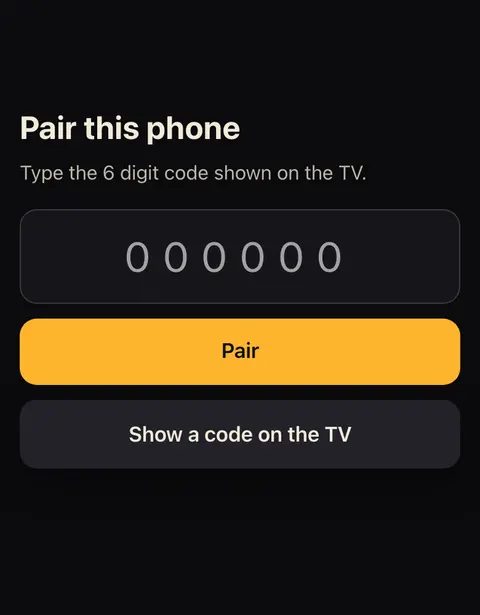
A code lasts 3 minutes. Tap Show a code on the TV for a new one. Add the page to your home screen.
-
5
Switch on Developer options
Your phone can already open apps and put on a show by name. For the arrows, typing and "what's playing", the TV needs to control itself.
On the TV: Settings, System, About (Android TV 9 to 11: Settings, Device Preferences, About). Press Build seven times, until it says you are a developer.
-
6
Pair Wireless debugging
Developer options, Wireless debugging: switch it on, tick Always allow on this network, then choose Pair device with pairing code and leave that screen open.
On your phone open the setup page, the same address with
/setupon the end, and type that code. It says connected (wireless debugging).Careful: Revoke USB debugging authorizations sits right above Wireless debugging. Never press OK on it.
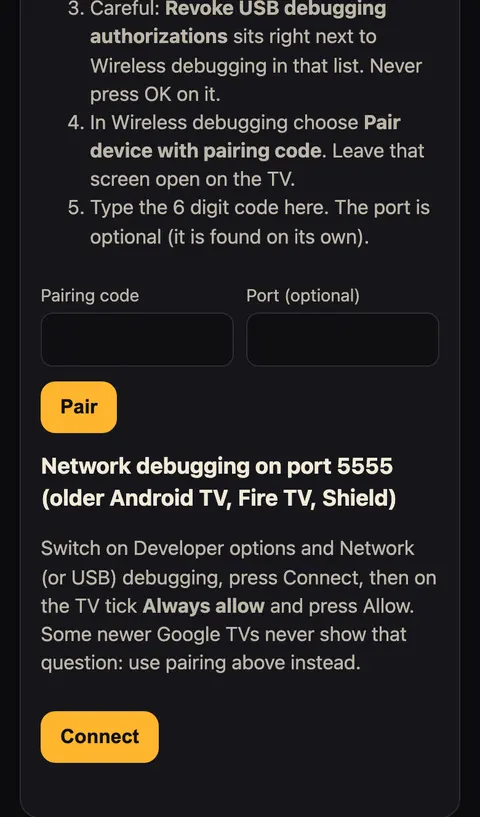
It needs Android 11 or newer and the TV on Wi-Fi, not a cable. Some TVs have no Wireless debugging at all (an Android TV 11 Toshiba in our test): there the phone opens apps but cannot press keys. The full remote then needs a computer at home (set it up with AI).
-
7
Make it your home screen
In Couch TV press Use as home screen. On Android TV 10 or newer, Android asks: choose Couch TV and press Always (or Set as default).
If Home still opens the TV's own home, press Home button watch and switch on Couch TV home watch.
Google TV is different. Google's home can keep the Home button, so open Couch TV from your apps row, or let a computer switch on the Home button watch once (with AI or the Setup app). Never switch off or uninstall the TV's own home.
Fire TV stick
The same app runs on Fire OS, but taking the Home button back needs three one off grants from a computer, and Amazon's home flashes up first. Vega OS sticks cannot install it.
Fire TV Stick stepsSamsung, LG or Roku
They do not run Android apps, so couch-tv goes on as an app, and a computer at home opens it every time the TV comes on. Set these up with AI.
Set it up with AISet it up with AI
Open the repo in Claude Code, or any coding agent, and say set this up on my TV
. It finds your TV, asks which way you want and a few questions (who watches, the look, your apps), reads the plan back, and changes nothing on the TV until you say yes.
1. Give it the repo
github.com/Seagey/couch-tv2. Say
set this up on my TVEvery TV it runs on
It covers every TV couch-tv runs on, including Samsung, LG and Roku, where a computer at home keeps it running. The agent reads the repo's own instructions so you don't have to. If you would rather do it by hand, the README has every step.
Set it up with your computer
couch-tv Setup is a free app for Mac and Windows. No command line and no AI. It opens a page in your browser, finds your TV on the Wi-Fi and walks you through it, most of it with the TV remote. For Google TV, Android TV and Fire TV.
It is brand new. It has connected to real Google TV, Android TV and Fire TV sets, but nobody has run a full setup with it on a real TV yet. Nothing changes on the TV until you say yes, and Undo puts it all back.
Not sure which Mac? Apple menu, About This Mac: "Chip: Apple M" is Apple silicon. Checksums
Unzip it and open it
The app is free and not signed with a paid Apple or Microsoft account, so your computer asks once whether you trust it.
Mac: double click couch-tv Setup and press Done when macOS says it cannot check it. Open System Settings, Privacy and Security, scroll down and press Open Anyway, then open the app again and press Open. When it asks to find devices on your local network, press Allow.
Windows: double click couch-tv Setup.exe. If "Windows protected your PC" shows, press More info, then Run anyway, and allow Private networks. Keep the exe in its folder.
Follow the page in your browser
It finds the TV, then shows you where to switch on Developer options with the TV remote. On a Google TV you type the 6 digit code from the TV's Wireless debugging screen.
Check the plan, then say yes
It reads back what it will do. Nothing changes until you press Yes, set it up. It installs the couch-tv home from GitHub, checks it, and makes it the home screen. It never switches off the TV's own home.
Changed your mind?
Open the app and choose Take couch-tv off a TV. It puts the TV's own home back and removes couch-tv.
Samsung, LG and Roku are not covered by this app: set those up with AI. Nothing is sent anywhere except the download from GitHub, and a place name to Open-Meteo if you type one for the weather.
What it does, and what it doesn't
It does
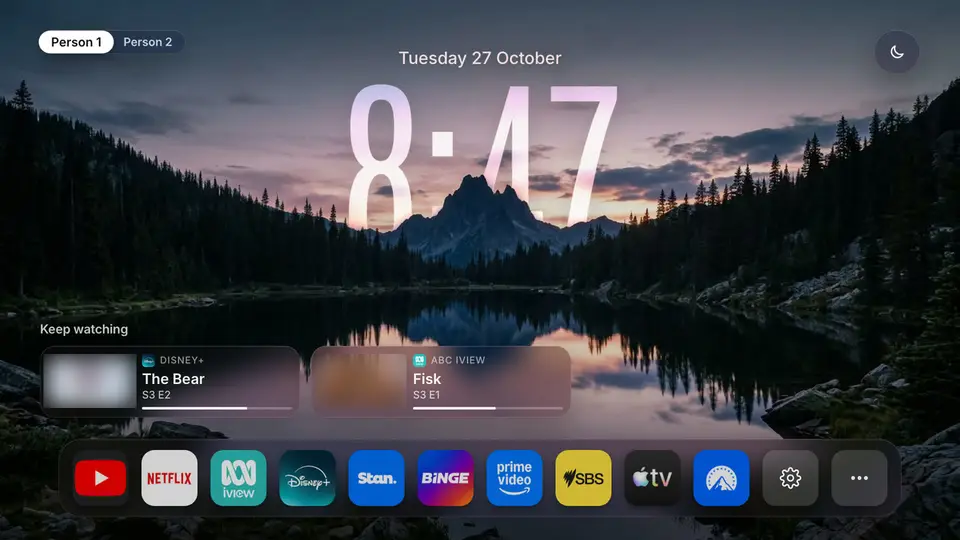
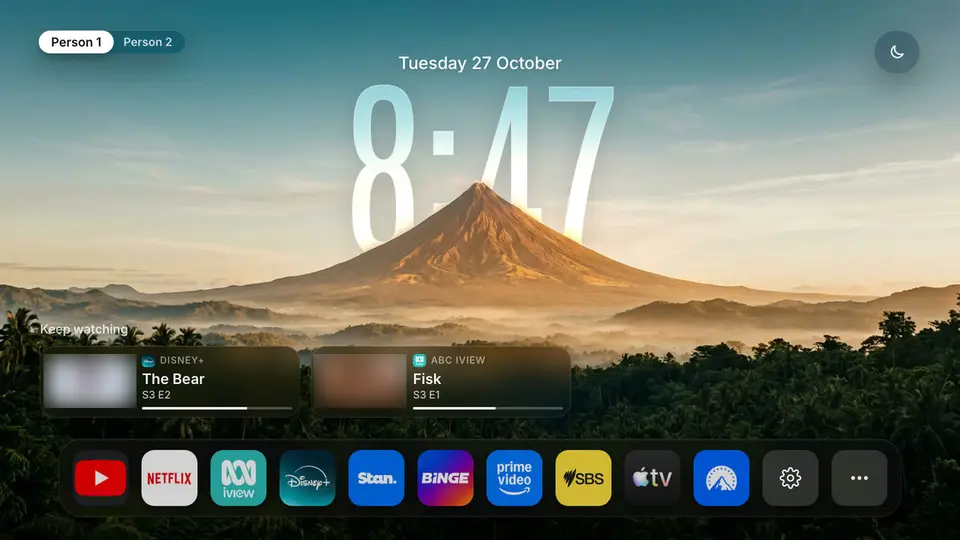
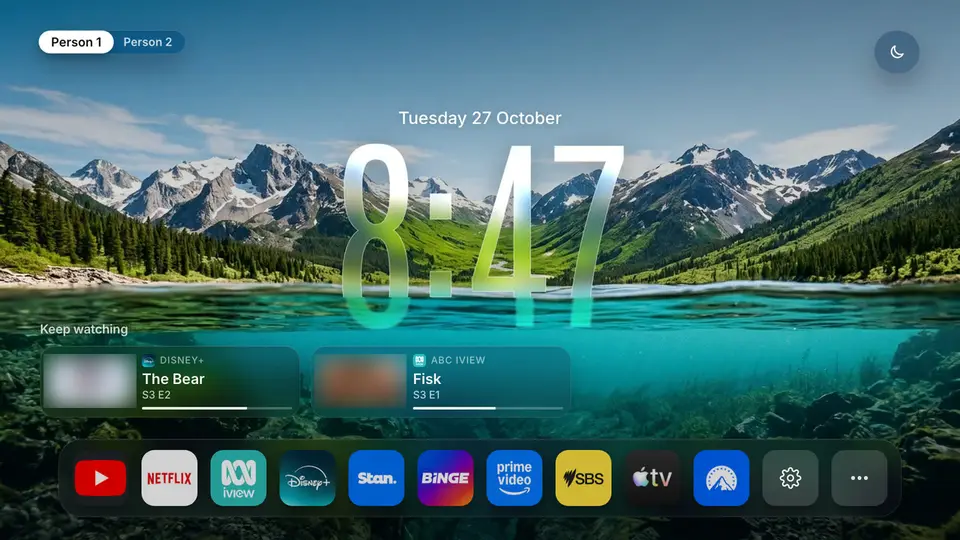
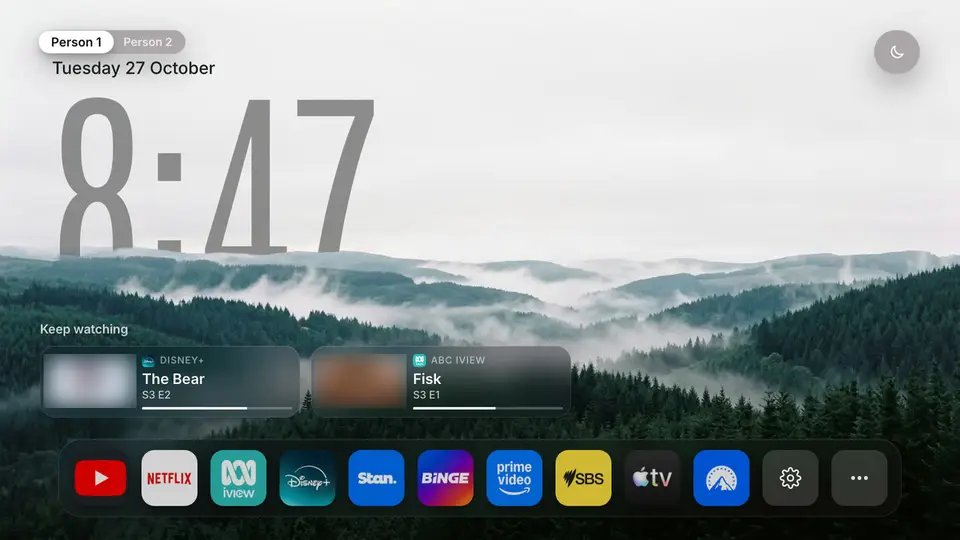
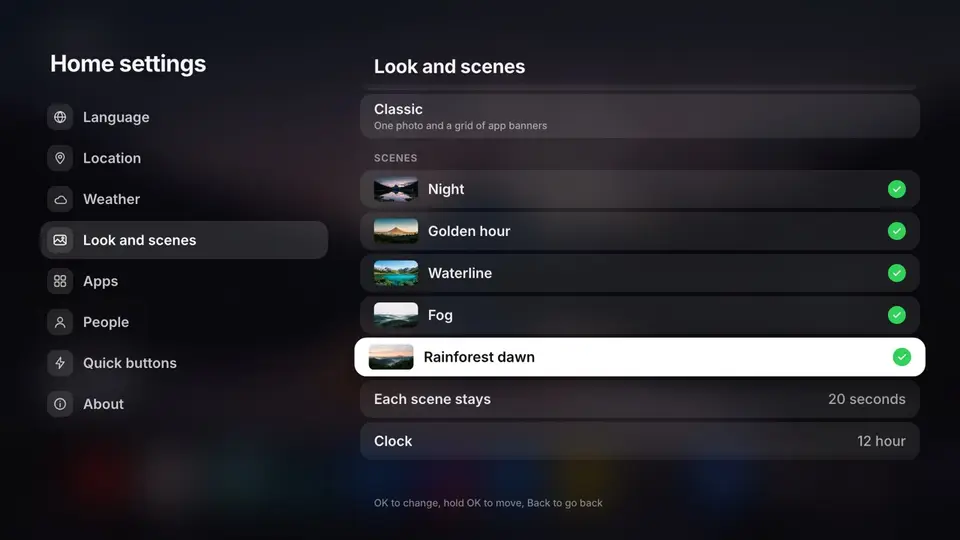
- A home screen with no ads. Five scenes take turns, each with a big glass clock that sits just behind the scenery. Or use your own photos.
- Your apps, in your order, and Keep watching for the shows you are part way through.
- Your phone is the remote. Arrows, typing, volume and a sleep timer.
- Put on a show by name. It finds where the show streams and opens it. A few apps only open on their home page.
- Settings on the TV, no computer: language, weather, look, apps, people and quick buttons.
- Speaks your language: English, Spanish, Italian, German, French, Turkish and Serbian on the TV.
- An assistant, if you want one. "Put on that show about the lawyer who never went to law school" finds Suits. It uses your own Claude plan on a computer at home, or your own API key in the TV app.
It doesn't
- Turn the TV on from your phone without a computer at home. The TV app sleeps when the TV does.
- Replace the home on Samsung, LG or Roku. There it opens itself as an app, the TV's own Home button still opens the TV's menu, and a computer at home has to stay on.
- Run on Apple TV, Hisense VIDAA, Fire TV sticks on Vega OS, Philips Titan OS or Saphi, Panasonic My Home Screen, TiVo or Vizio.
- Give the full phone remote on an up to date Fire TV from the TV app alone. Amazon blocks the keys and typing; opening apps still works.
- Run on a real Roku, yet. The Roku version is built from Roku's documentation and nobody has tried it on one.
- Come with a support promise. It works on the TVs it was built on. Yours may differ, and the issues page is where to say so.
Built by the people who use it
couch-tv started on one living room TV and went public on GitHub in October 2026. Since then people have tested it on their own TVs, reported what broke and sent whole features: Fire TV, Android 6, Serbian, new looks and quick buttons.
- stars on GitHub
- 556
- forks
- 94
- people credited
- 37
- Akdex
- alexdurkinbrown
- alonmustafa
- atishay-kasliwal
- BireshwarChakravarty
- Bronze133
- ChrisFWCB
- digitaldarkmatterltd
- dlandman27
- drharcho
- ekagra-codes
- farmersdance
- fifarsi
- frankelsteve-a11y
- getriri
- guillaumea18
- gurpritsingh81
- Harshrajp676
- haydenbudd
- herocode1
- ImCodingCat
- ishanboss20
- jcalmeida
- jkriek7
- Justin1491
- killy10o10
- likith007156
- MajorasJack
- marko96
- philehaynes
- roliusz
- Tarzansaurus
- udhava2-stack
- whitexcdghk
- whyashpaliwal
- wit3
- wojowar