Set it up with your computer
A free app for Mac and Windows. No AI, no command line.
Before you start
- You get couch-tv as the TV’s home, Home button included, and the phone remote if you add it.
- You need a Mac or Windows computer on the same Wi-Fi, for about ten minutes. Then it can go.
- Works on Google TV, Android TV 7.1 and newer, and Fire TV on Fire OS.
- Samsung, LG, Roku and other TVs can’t use this app. Use AI.
-
Step 1. Download Setup for your computer
More help
Not sure which Mac? Apple menu, About This Mac: "Chip: Apple M" is Apple silicon, "Processor: Intel" is Intel.
Want to check the download? Checksums
-
Step 2. Unzip it and open it. Say you trust it, once
Mac"couch-tv Setup" was blocked to protect your Mac.Open AnywayWindowsWindows protected your PCRun anywayMore help
The app is free and not signed with a paid Apple or Microsoft account, so your computer asks once.
Mac:
- Double click couch-tv Setup. When macOS says it cannot check it, press Done.
- Open System Settings, Privacy and Security, scroll down and press Open Anyway.
- Open the app again and press Open.
- When it asks to find devices on your local network, press Allow.
Windows:
- Double click couch-tv Setup.exe. If "Windows protected your PC" shows, press More info, then Run anyway.
- Allow Private networks if Windows asks.
- Keep the exe in its folder: it needs the folder next to it.
-
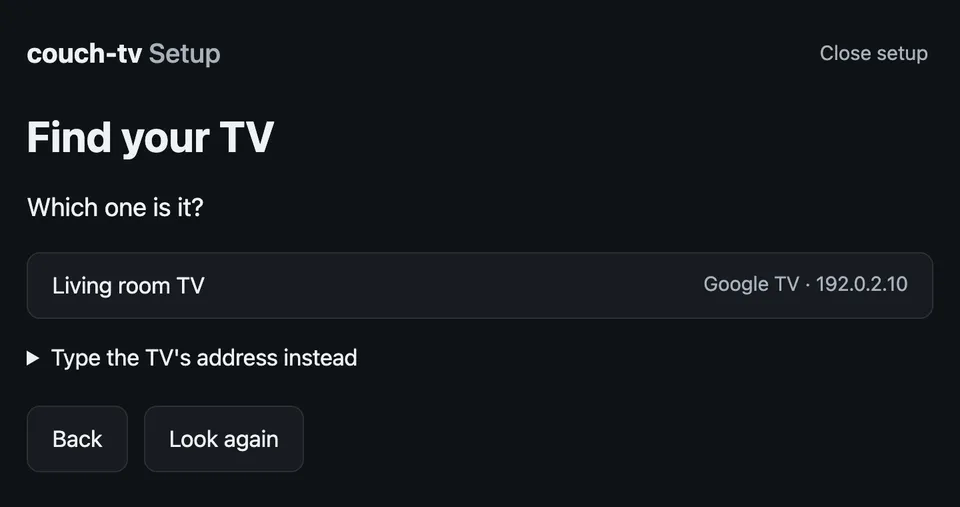
Step 3. Press Start, then pick your TV
More help
The app opens a page in your browser. The TV must be switched on and on the same Wi-Fi as your computer.
Not listed? Press Look again, or type the TV's address instead.
-
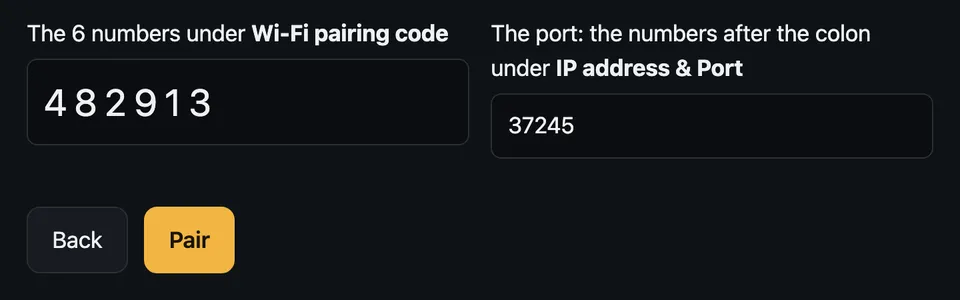
Step 4. Follow it on the TV remote, then type the TV's code
More help
It shows where to switch on Developer options and Wireless debugging with the TV remote. On a Google TV you type the 6 digit code from the TV's Wireless debugging screen.
An older Android TV or a Fire TV asks Allow USB debugging? instead: tick Always allow and press Allow.
Never press OK on Revoke USB debugging authorisations. It sits right above Wireless debugging.
-
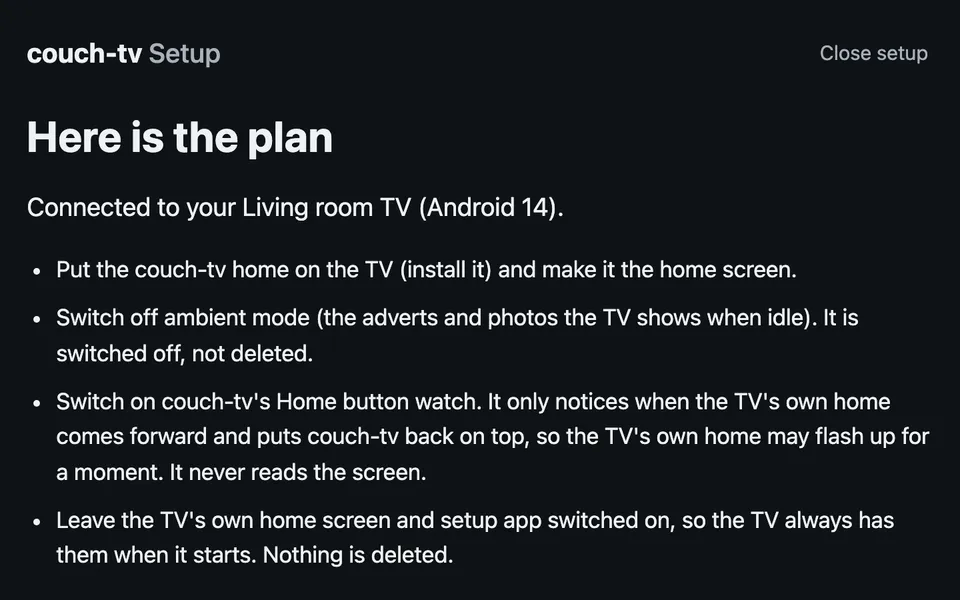
Step 5. Check the plan, then press Yes, set it up
More help
Nothing changes on the TV until you press Yes, set it up. It installs the couch-tv home from GitHub, checks it against its checksum, and makes it the home screen.
It never switches off or deletes the TV's own home screen, and it writes down what it changed so Undo can put it back from any computer.
-
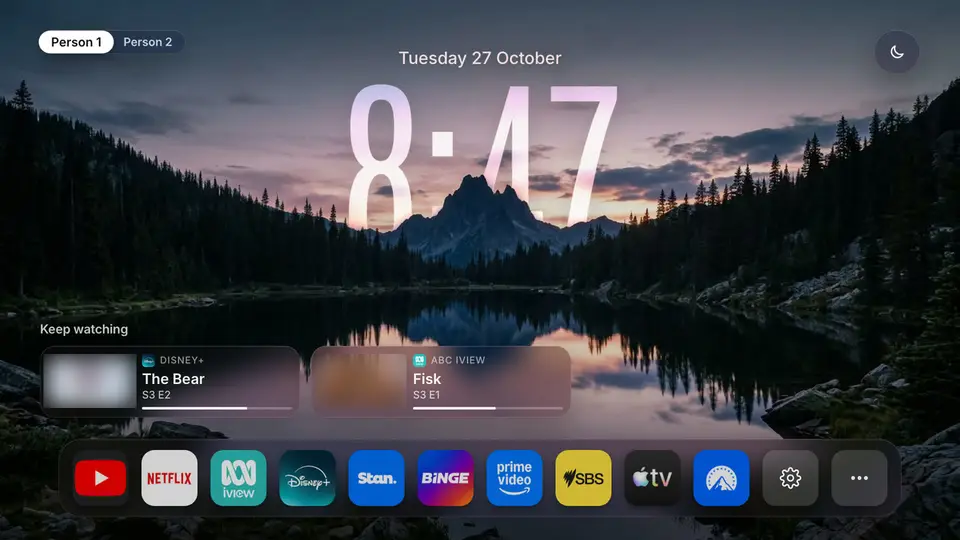
Step 6. Press Home on the TV. Done
More help
Want the phone remote too? Press Add the phone remote at the end.
On a Fire TV, Amazon's home flashes up for a moment before couch-tv comes back.
Which TVs this app doesn't cover
Samsung, LG, Roku, VIDAA, Apple TV, Fire TV sticks on Vega OS, Philips with Saphi or Titan OS, Panasonic with My Home Screen and TiVo OS. Many of them still work with a computer at home: set those up with AI, or check your TV.
Android 6 and 7.0 TVs are experimental and set up from a computer with the guide on GitHub. An Android TV with no Wireless debugging that never asks "Allow USB debugging?" needs a USB cable once: the app checks and tells you.
What it sends, and what it keeps
Nothing is sent anywhere except the download from GitHub, and a place name to Open-Meteo if you type one for the weather. No accounts, no tracking, no AI.
It keeps the TV's key and a list of what it changed in its own folder on your computer. Delete that folder to forget everything.
Changed your mind? Open the app and choose Take couch-tv off a TV. More ways to remove it.